Improve the presentation without rebuilding the campaign
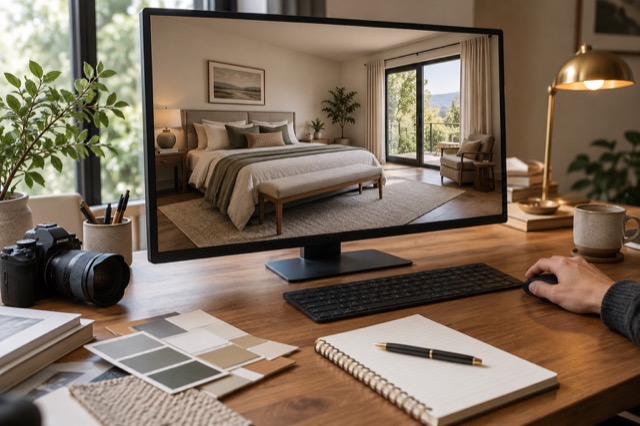
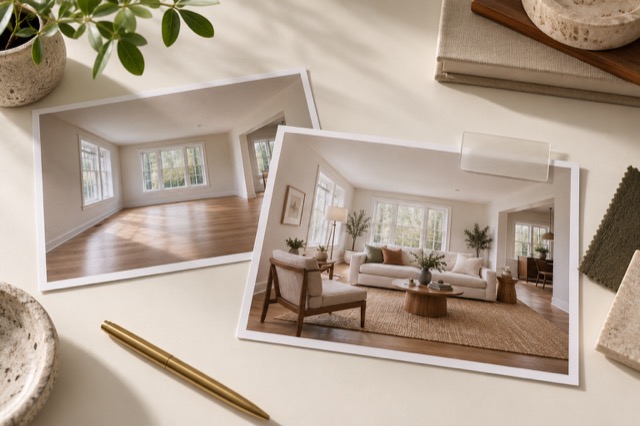
Perhaps a room needs a tidier finish, or the current furniture distracts from the layout. You can work on the selected photograph in ShootEstate rather than arranging a new physical staging session just to explore a different presentation. Choose Tidy & polish when the furniture should stay, or Virtually stage when a furnished layout would help explain the space.
For a result that is almost right, an eligible account can use Make a written tweak to request a specific small change. Check the allowance shown before generating another edit. A focused refinement is useful for a finishing detail; use the staging treatment when you need a broader furniture change. Review every new result against the original before selecting it.
Review the selection before sharing
Treat the draft and the shared page as separate versions
A published ShootEstate property page is a snapshot of the listing you approved. Changing your private draft does not by itself replace the published snapshot. This gives you room to compare photographs and revise the property description without making every intermediate choice visible to someone opening your shared link.
The distinction also creates one essential finishing step: saving an edit is not the same as updating the public page. If you change the draft and then copy the existing link without updating the published listing, the reader will still see the previously published presentation. Plan a short publication review whenever you change the selected photos or the listing details.
Review the whole presentation before updating
Open the listing gallery and check which image is selected for each room. Look at the sequence as a viewer would: can you understand the home, and do the photos agree with the property description? Check windows, doors, finishes and visible condition against the original images before concentrating on decorative details.
Review the price, contact information and location visibility alongside the gallery. Keep virtual furnishings distinct from factual property features and review the staging disclosure workflow. Download edited photo gives you a selected image for use elsewhere, but replacing a downloaded file on another service is a separate task; updating the ShootEstate page does not update every channel where you previously used a photograph.
Update the existing published listing
When the selected photos and details are ready, save the draft and use Update published listing in the publishing controls. ShootEstate checks that the saved draft is current and that the selected images are available before creating the revised public snapshot. If it asks you to review or save again, complete that step before retrying.
For the same listing, the update keeps its existing ShootEstate sharing link. You do not need to create a second listing just to replace a photograph on that page. Open the public link after the update and check the visible page yourself, including the chosen image order and key property information. Keeping a stable link is useful only when the page at that link contains the version you intended.
Know when to update and when to hide
An ordinary presentation improvement usually calls for an update. If the page should no longer be publicly available, use Hide listing instead. Hiding is a separate publishing action, not a way to save an unfinished photo edit. Keep that choice deliberate when the listing is being withdrawn or you need to stop sharing it.
The practical rhythm is straightforward: improve the photos, review the private draft, update the published listing and inspect the shared page. ShootEstate handles more of the photographic and presentation work while you retain the moment of approval. That makes a revised room image a manageable listing update rather than a reason to rebuild the whole property presentation.
Find your photo workflow
For Realtors · For Photographers
Explore Tidy & polish and virtual staging, or check current edit bundles.
Open your studio